Appearance and position
Style the chat widget in the Theme Editor and choose where it appears.
The chat widget's look is set in the Shopify Theme Editor. Its position and the pages it shows on are set in Lumen.
Colors, fonts and style (Theme Editor)
- Go to Online Store → Themes → Customize.
- Open App embeds in the left sidebar.
- Expand Lumen Chat Widget.
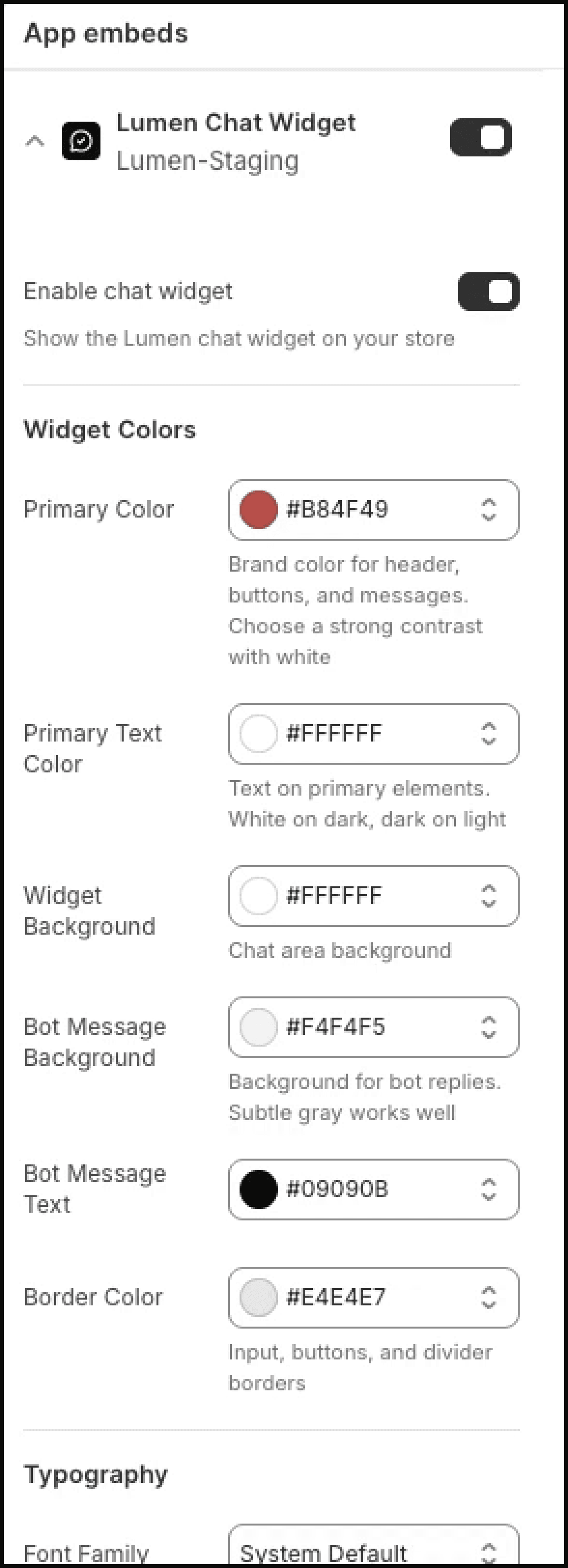
| Group | Settings |
|---|---|
| Widget colors | Primary color (header, buttons, shopper messages), primary text color, widget background, bot message background, bot message text, border color |
| Typography | Font family: System default (loads nothing), Inter, Roboto, Lato, Poppins or Open Sans |
| Button and spacing | Toggle button size (56, 64 or 72 px), content spacing (tight, comfortable, spacious) |
| Widget style | Border radius (flat to extra round), shadow intensity |
Pick a primary color with strong contrast against the primary text color. Changes preview live. Click Save to publish them.
The tracking form block has its own color and layout settings. See Tracking form block.
Position (Pro and above)
In Apps → Lumen → Settings → Widget setup, choose a corner: bottom right (default), bottom left, top right or top left.
You can also set a horizontal and vertical offset from 10 to 100 px. Use this to keep the bubble clear of cookie banners, loyalty buttons or other floating elements.
Page visibility (every plan)
In the same section, choose:
- Show on all pages (default), or
- Show on specific pages only, then list page paths separated by commas, such as
/products, /collections/all. Use/for the home page.
Mobile
On phones, the chat opens almost full screen with touch-friendly input. There's nothing to set up.
No pop-ups
The chat stays a bubble until the shopper clicks it. It doesn't open by itself.
Hide the chat
To hide the chat but keep the tracking form and page, choose Tracking form only on the dashboard. To remove it everywhere, switch off the app embed in the Theme Editor.