Getting started
Installation
Install Lumen from the Shopify App Store and approve its permissions.
Installing Lumen takes a few minutes. You don't need to edit theme code.
Before you start
You need:
- A Shopify store on any Shopify plan.
- Staff access with permission to manage apps.
- The Online Store sales channel. The tracking page, tracking form and chat widget all appear there.
Step 1: Install the app
- Open the Shopify App Store and search for Lumen. You can also start from the Lumen website.
- Click Install.
- Review the permissions and click Install again.
Lumen opens in your Shopify admin on the Home dashboard. Every store starts on the Free plan.
Step 2: Check the permissions
Lumen only reads data. It can't change orders, customers, products, payments or inventory.
| Permission | Why Lumen needs it |
|---|---|
| Read orders and all orders | To find the order a shopper asks about, however old it is |
| Read fulfillments and fulfillment orders | To show shipments, carriers and tracking links |
| Read legal policies | To import your Shopify store policies and read your return settings, so the assistant can answer return and cancellation questions |
| App proxy | To serve the tracking page and storefront requests from your store's own domain |
Step 3: Choose how shoppers track orders
On the dashboard, find How customers track orders and pick one option:
- Chat assistant and tracking form (default)
- Tracking form only: for stores that already use a chat app such as Tidio, Gorgias or Shopify Inbox
- Chat assistant only
See How shoppers track orders to choose.
Step 4: Turn things on in your theme
Depending on your choice:
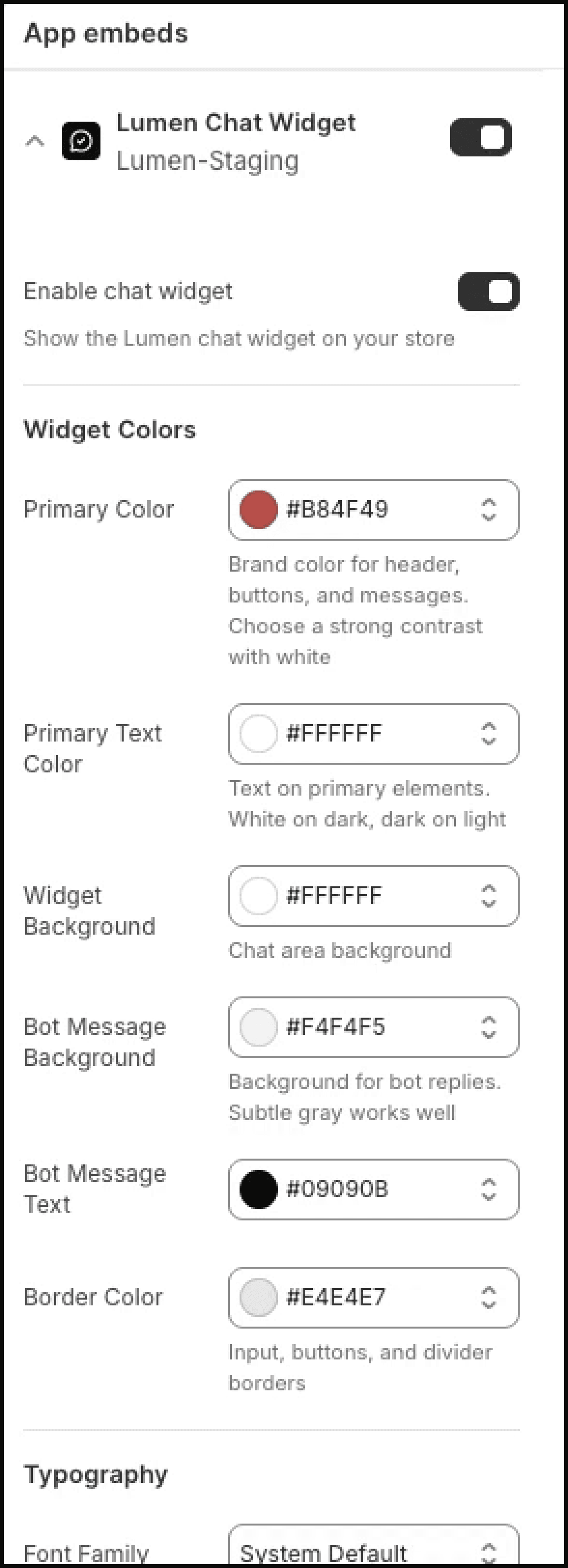
- Chat assistant: turn on the Lumen Chat Widget app embed. Go to Online Store → Themes → Customize → App embeds, switch it on and click Save.
- Tracking form: add the Lumen Order Tracking block to a page. See Tracking form block.
- Tracking page: nothing to turn on. Link
https://your-store.com/apps/lumen-widget/trackfrom your menu. See Tracking page.
What's next
Continue with the setup checklist.